Forms
Forms are how members submit answers in Discord. You build them in the dashboard, publish a message to a channel, and members click Open Form (or pick your form from a panel).
Before you start
- Formify is in your server and you can open it in the dashboard.
- You know which channel should show the form.
- You know which channel (or thread/forum/ticket mode) should receive submissions.
If publishing fails, check Permissions first.
Create a form
- Open your server in the dashboard.
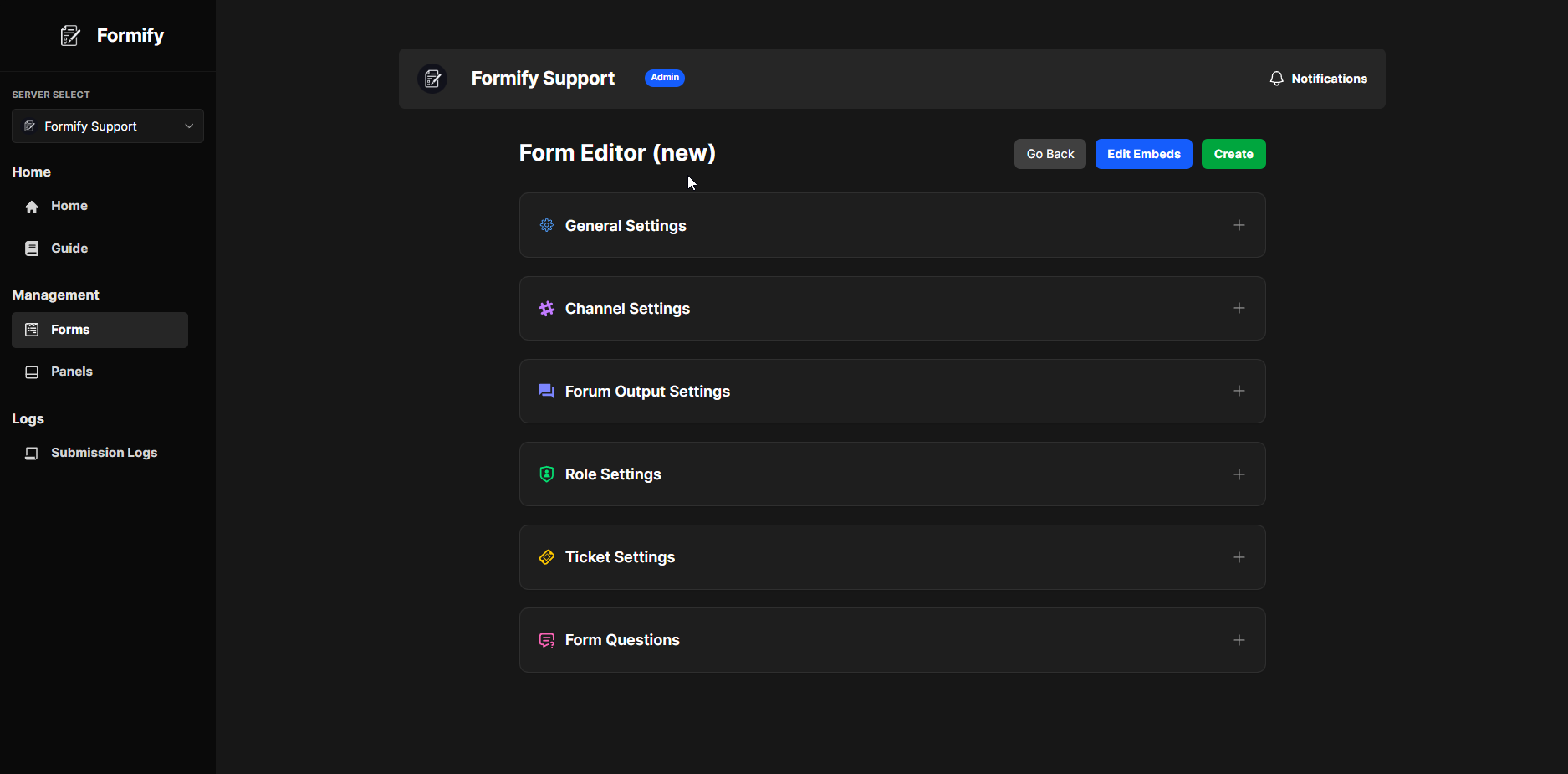
- Go to Forms → New form.
- Work through the tabs:
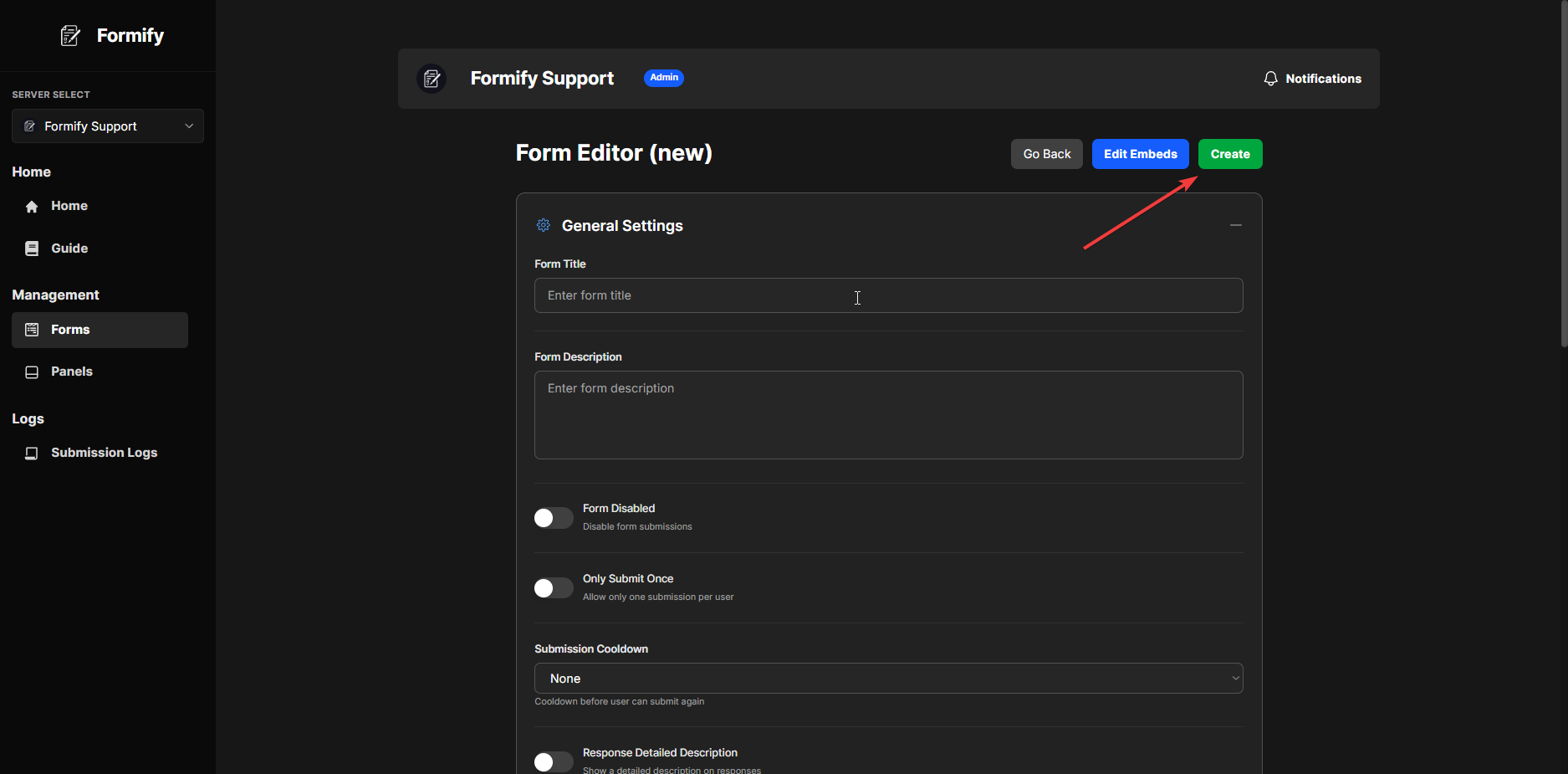
Basics
- Title and description — shown on the open-form message.
- Disabled — stops new submissions without deleting the form.
- Only submit once — one submission per user until staff reset them.
- Submission cooldown — optional wait time between submissions from the same user.
Questions
Add each question you want members to answer.
Discord modals fit five inputs per page. Longer forms automatically split into multiple pages when someone submits.
Output
Choose where submissions go:
- Channel — posts a review embed in a text channel (most common)
- Thread — creates a thread on a parent message
- Forum — posts into a forum channel
- Ticket — opens a ticket channel instead of (or in addition to) a log channel, depending on your ticket settings
Pick the output channel (or parent) Formify should use.
Roles
- Mod roles — who can use Approve/Deny/Ticket Response buttons
- After approve / remove on approve — optional role changes when staff approve
- Blocked roles — members with these roles cannot open the form
Tickets
If this form should open support tickets on approve or via Ticket Response, configure ticket naming, categories, and limits here. See Tickets for the full picture.
- Click Save at the top.
Customize embeds
Before or after publishing, open Embeds from the form editor or the forms list Manage menu.
You can edit:
- The open form message (what members see before they click)
- Submission output — the review embed staff see
- Approval, denial, DM, and ticket-open messages
Changes to embeds do not always update the live Discord message until you Publish again. See Embeds.
Publish to Discord
- From the form editor or Forms list, choose Publish.
- Select the text channel where the open-form message should appear.
- Confirm.
Formify sends (or updates) the message with your open button. Members click it to fill out the form in a modal.
Important: Saving the form does not post it. You must publish at least once.
Manage existing forms
From Forms, open Manage on any form to:
- Edit settings
- Open the embed editor
- Publish to a new channel
- View submissions (links to Submission Logs filtered by form)
- Export CSV
- Copy to another server (if you manage it)
- Delete the form
Create a form with /create (Discord)
In Discord, run:
/createFollow the prompts to set title, color, questions, and channel. This is faster for simple forms but skips some dashboard-only options.
To repost an existing form message:
/resend form:<id>Use /list forms to see form IDs.
Limits worth knowing
- Blocked / mod / after roles: up to three roles per field where applicable
- Claimed roles: up to five on ticket-related settings
- Discord modal pages: five questions per page (Formify splits longer forms automatically)
- Discord
/createlimit: four forms per server by default, unless your server has the weekly top.gg vote bonus
Next steps
- Form panels — multiple forms in one message
- Submissions — review and export responses
- Embeds — message appearance
- FAQ