Form panels
A form panel groups several forms into one Discord message. Members pick a form from a dropdown or a row of buttons instead of scrolling past separate posts.
Before you start
- You already have at least one form. Panels attach existing forms — they do not create new ones.
- You know which channel should display the panel.
Create a panel
- Open your server in the dashboard.
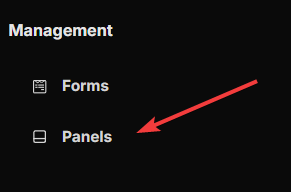
- Go to Form Panels.
- Click New panel (or Create your first panel if the list is empty).
Configure the panel
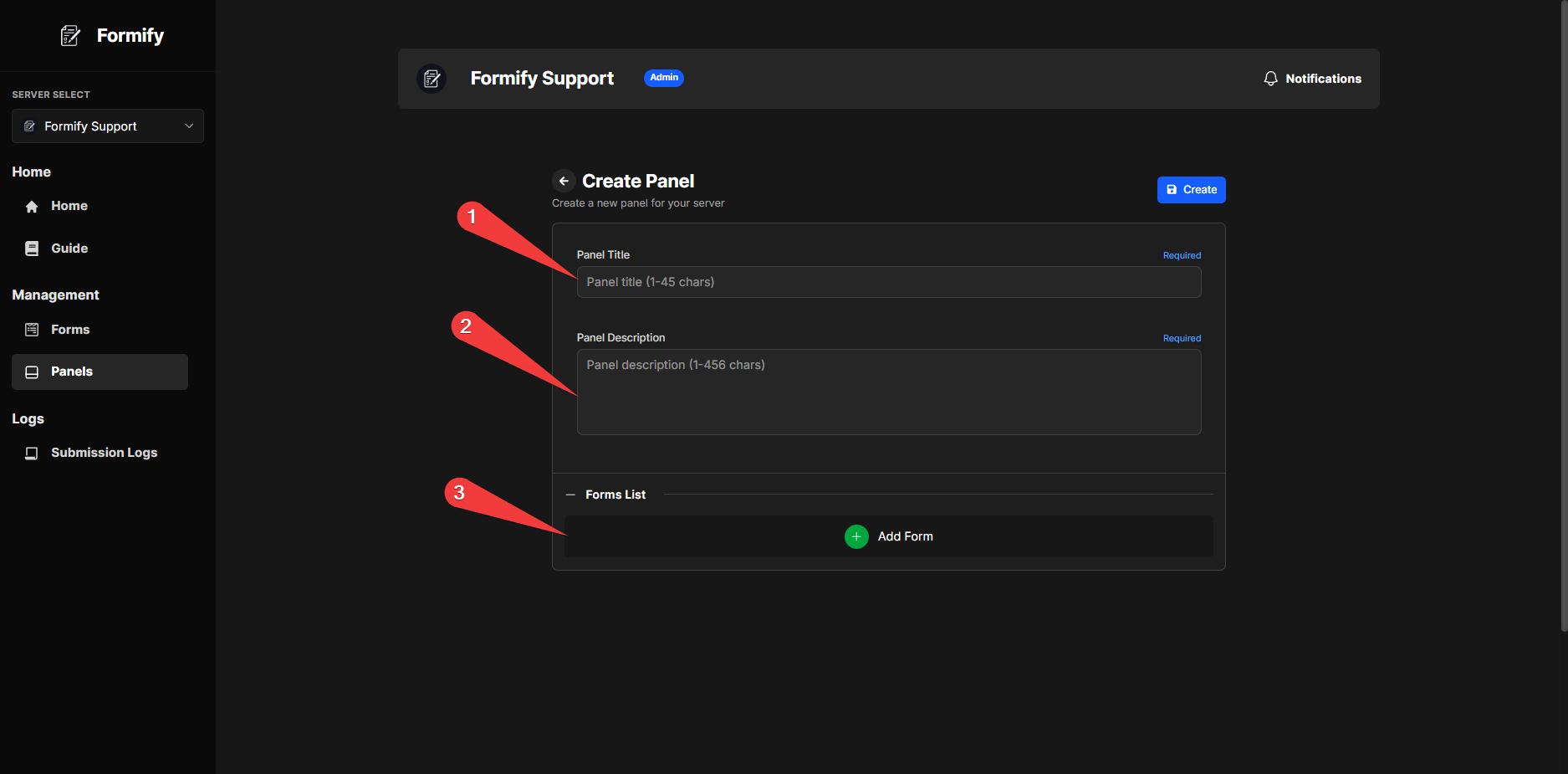
Fill in:
You can attach many forms to one panel (up to 20 in the current bot limit).
Publish the panel
- Save the panel.
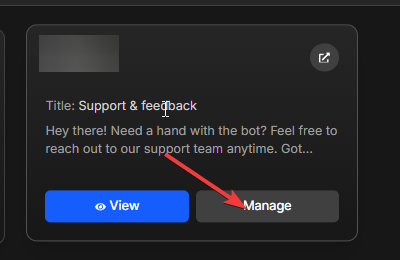
- Open Manage → Publish to Discord (or publish from the editor).
- Choose the channel.
Members interact with the dropdown or buttons. Formify opens the correct form modal for the option they pick.
You can also publish from Discord with:
/panel send(requires Manage Server)
Edit appearance
Open Embeds from the panel's manage menu to change footer, thumbnail, image, and colors on the panel message.
After editing embeds, publish again so Discord shows the updated message.
Tips
- Use panels when you have several similar workflows (applications, reports, feedback) in one area.
- Keep titles short so button labels stay readable.
- If a form is disabled, it may still appear on the panel but will reject submissions — disable or remove it from the panel if you are retiring it.