
#
📝 Creating Forms with Formify
Creating forms with Formify is quick and simple. You can build forms directly from the Formify website and send them straight to your Discord server.
#
🔑 1. Get started
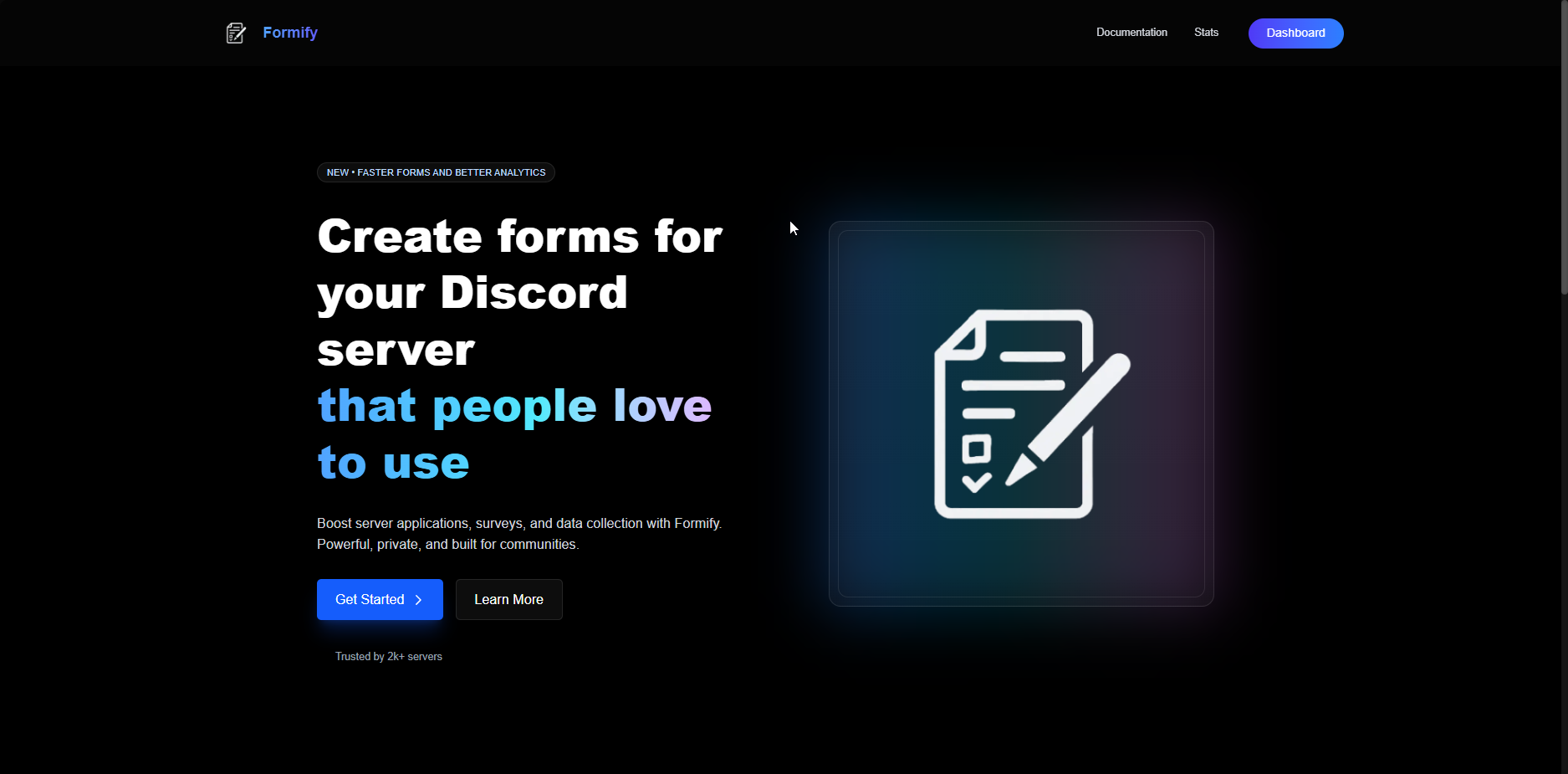
Head over to formify.pro and log in with your Discord account.
#
📊 2. Open Your Dashboard
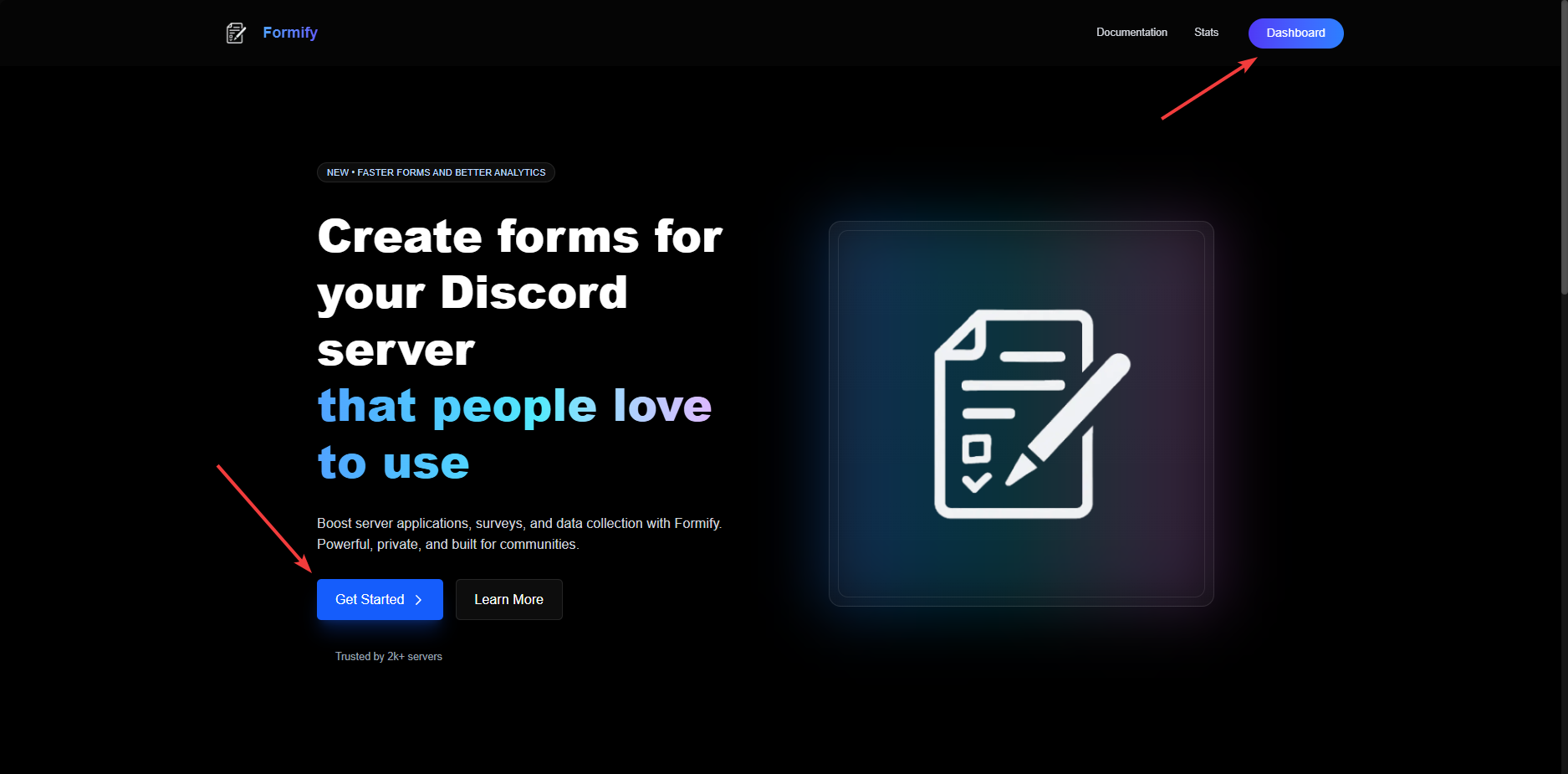
- Click the Dashboard button (mobile users: open the menu, then tap Dashboard or Get Started).
- Find your server in the list and click Open.
#
Dashboard
#
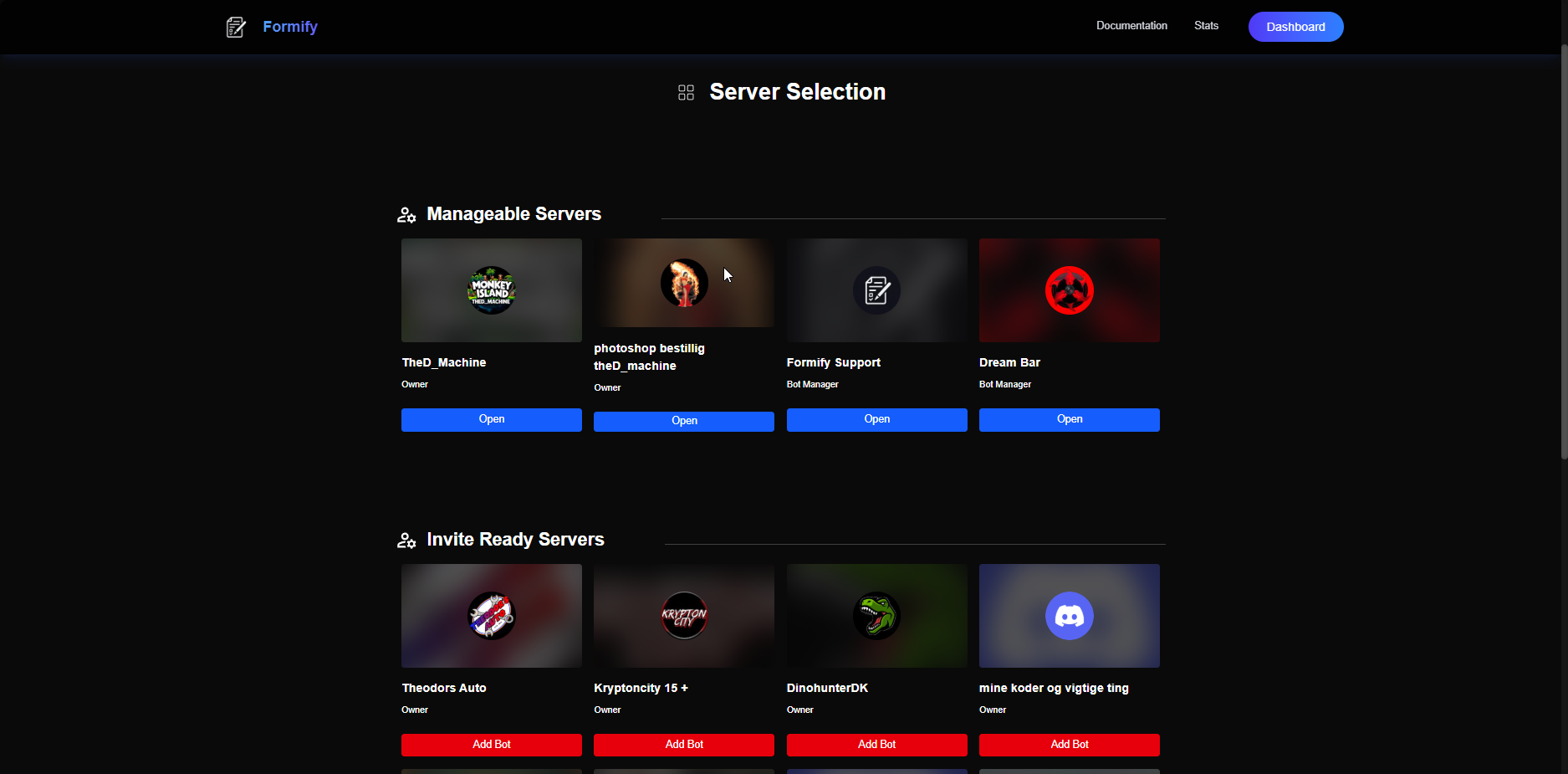
3. select your server
Choose what server you wanna work on.
#
➕ 4. Create a Form
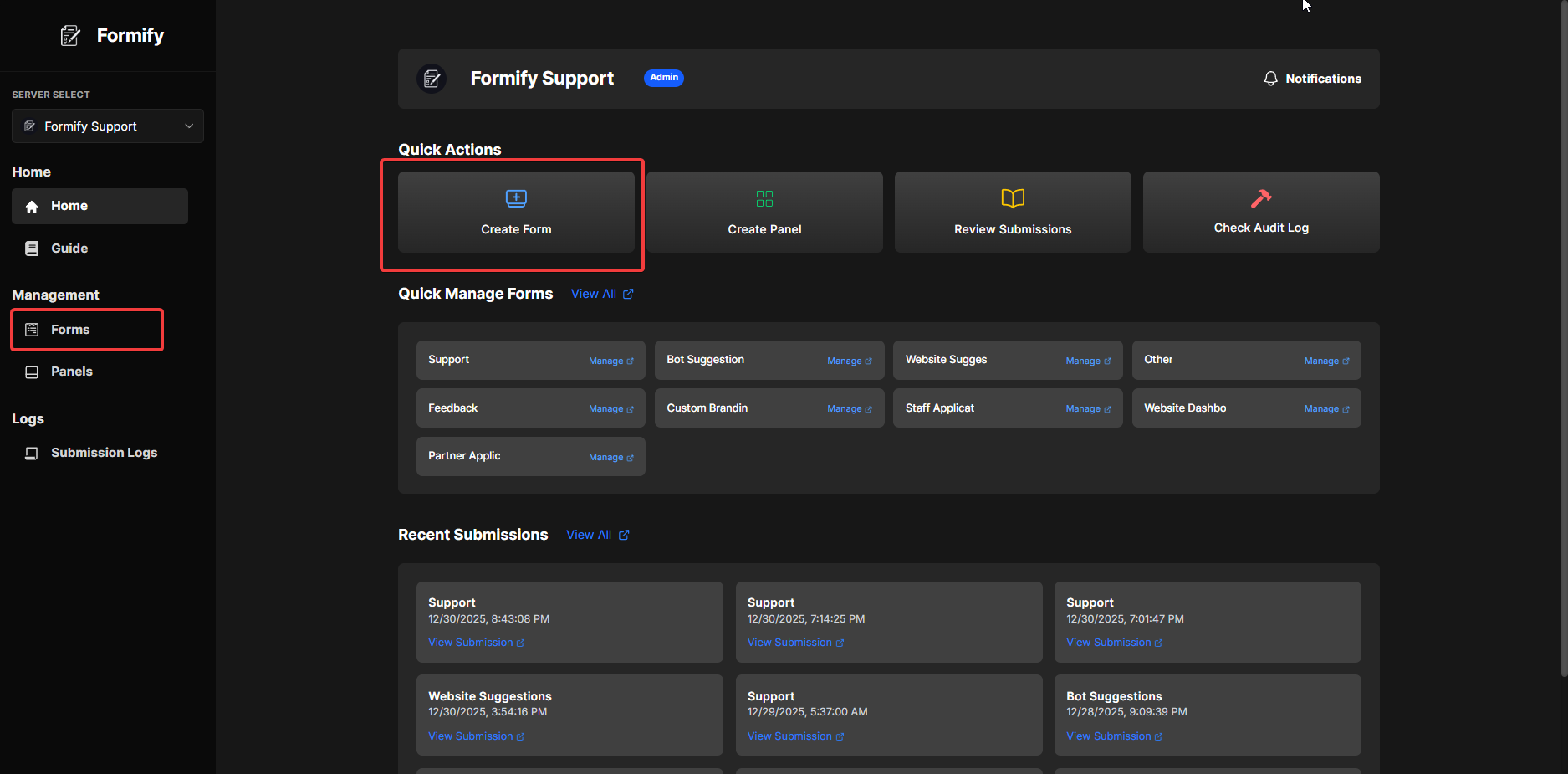
Click the Create form on the Create Forms card to start building your form.
#
✍️ 5. Fill in Your Form Details
When creating your form, you can customize each options shown below:
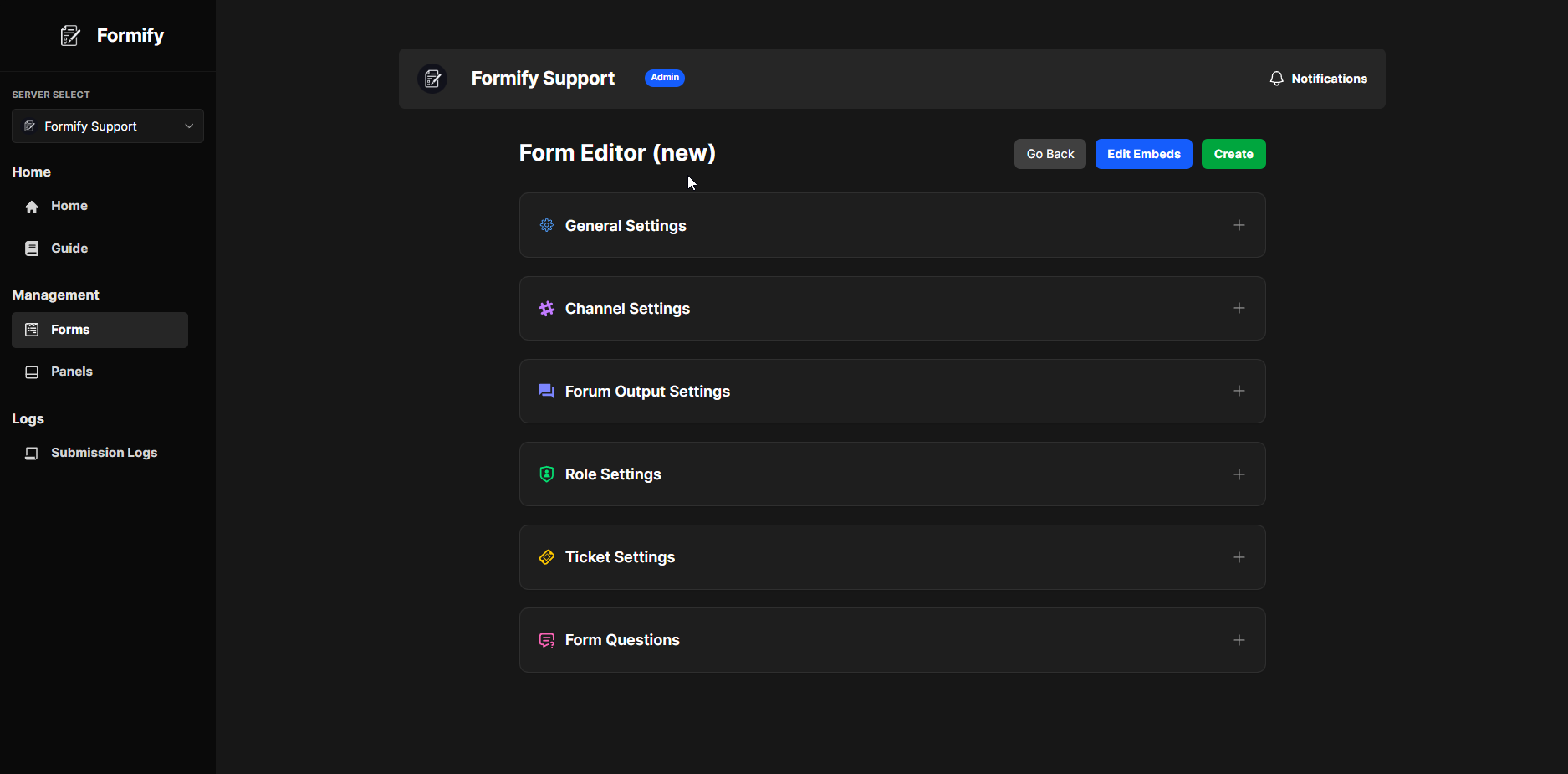
- Question → The text users will answer (required).
- Min → Minimum character length (optional).
- Max → Maximum character length (optional, default: 1024).
- Answer Body → Choose between short (one line) or paragraph (multi-line).
- Placeholder → Helper text shown inside the answer box (optional).
#
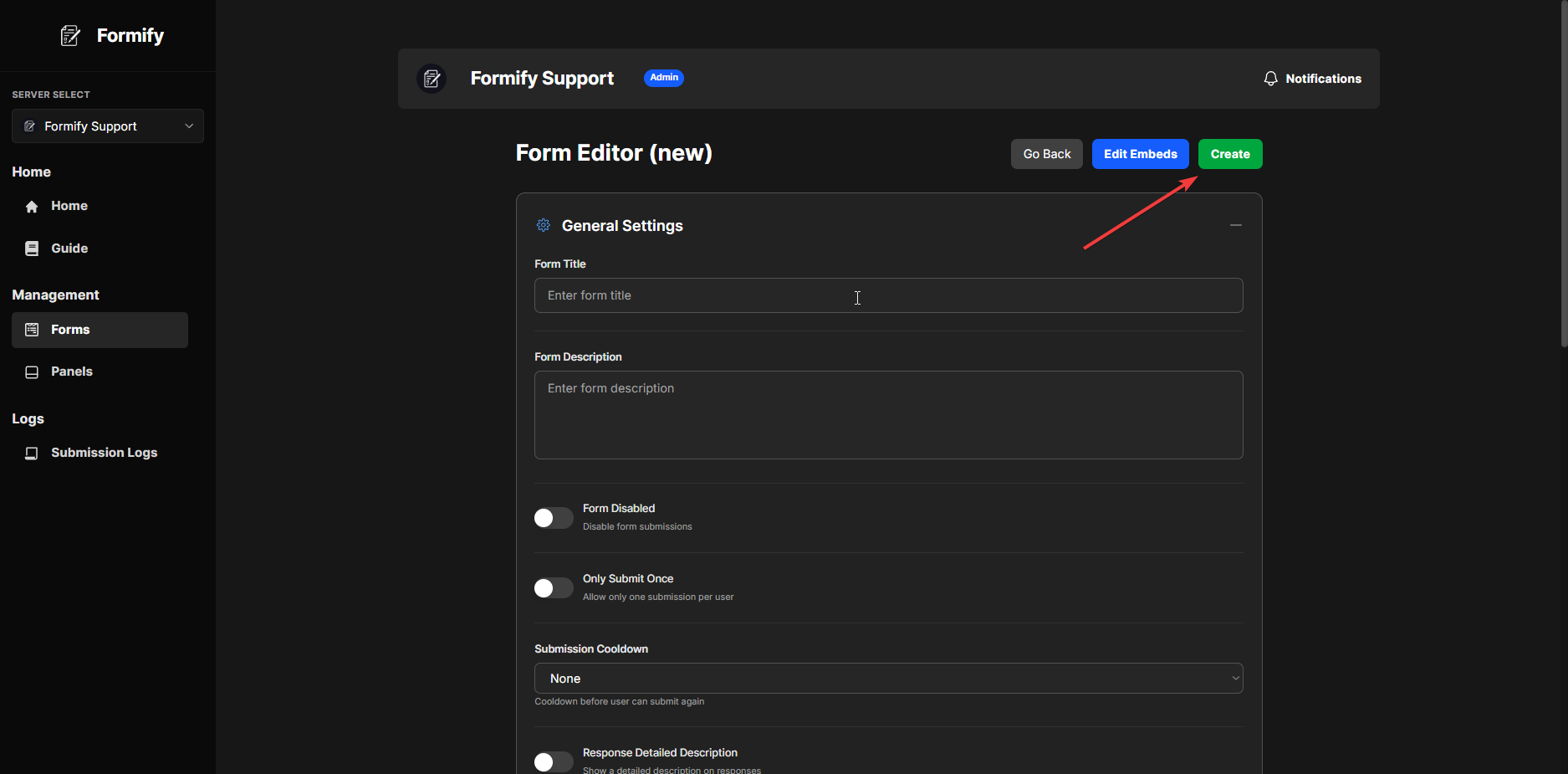
💾 6. Save/create and Done!
Click Save/Create at the top-right. 🎉
Your form will instantly be sent to your selected channel. You can always edit it later from the Form Editor.
✅ You’ve just created your first Formify form!